
How to Schedule Messages in GB WhatsApp
Message scheduling lets you write a text now and have GB WhatsApp send it later automatically. It is useful for birthdays, reminders, and follow-ups, but the message only sends if the app can actually run at the scheduled time.
How Message Scheduling Works
A scheduled message is stored in the app until its delivery time arrives, then sent like a normal message. The feature needs the app to be online and able to run in the background at that moment, which is why scheduled messages can occasionally be delayed or missed.
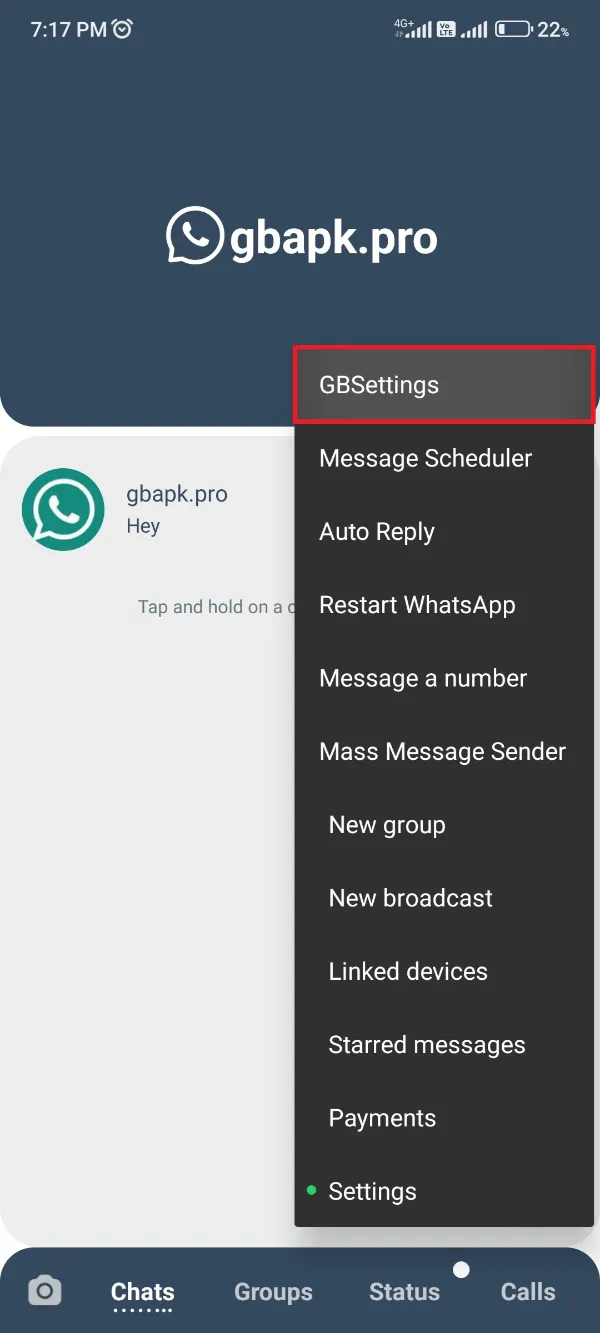
The menu name and location vary between GB WhatsApp versions, so use the steps below as a general path and adapt them to your own build.
How to Schedule a Message
- Open GB WhatsApp and find the scheduling feature, usually in the app’s mods or tools area.
- Choose the contact or group that should receive the message.
- Write the message text you want delivered.
- Set the delivery date and time carefully, watching the AM/PM setting on 12-hour clocks.
- Save the message and confirm it appears in the pending list.
If your version has no scheduling option at all, the feature may simply not be included in that build.
How to Edit or Cancel a Scheduled Message
- Open the scheduler’s list of pending messages.
- Select the message you want to change.
- Edit the text, time, or recipient and save again, or delete the entry to cancel it.
- Reopen the entry afterward to confirm the details are correct.
Why Scheduled Messages Sometimes Never Send
Phone asleep or offline
The app must be online and able to run at the scheduled time. If the phone is off, in airplane mode, or without data, the message will not go out.
Background restrictions
Android may freeze the app to save power. Allow background activity and exclude the app from battery optimization, then test again.
Incorrect schedule details
Recheck the date, time, and recipient. An AM/PM mistake delays a message by twelve hours.
Background behavior is the same force that affects alerts, which is covered in the guide on fixing GB WhatsApp notifications.
Tips for Using Scheduling Reliably
- Test once with a trusted contact before relying on the feature.
- Keep the phone online and the app unrestricted around delivery times.
- Review pending messages regularly so outdated entries do not send unexpectedly.
- Treat scheduled messages as a convenience, not a guarantee for urgent matters.
Summary
Write the message, pick the recipient, set the time, and save. Keep the app unrestricted in the background, and verify each schedule with a test before depending on it.
For a general introduction to the app, visit the GB WhatsApp homepage.
Frequently Asked Questions
No. A successfully delivered scheduled message looks like any normal message.
It can, but only if Android allows the app to run in the background at that moment. Battery restrictions may delay or block it.
That depends on your version. Some builds only handle text reliably, so test media scheduling with an unimportant message first.
The phone was likely asleep, offline, or restricting the app at the scheduled time. The app then sends when it next gets a chance to run.